Flipbooks get even more real with heyzine reader annotations. Your readers get a pen, a highlighter, shapes and text notes right inside the pages. You decide whether those annotations stay private to each reader, get saved to your dashboard, or are shared with everyone who opens the flipbook.
Private annotations are available on all plans. Saving annotations to your dashboard and sharing them between readers are part of the Professional Plan and above.
- How do I enable reader annotations?
- Which tools can readers use?
- Who can see the annotations?
- How can I see what my readers annotated?
How do I enable reader annotations?
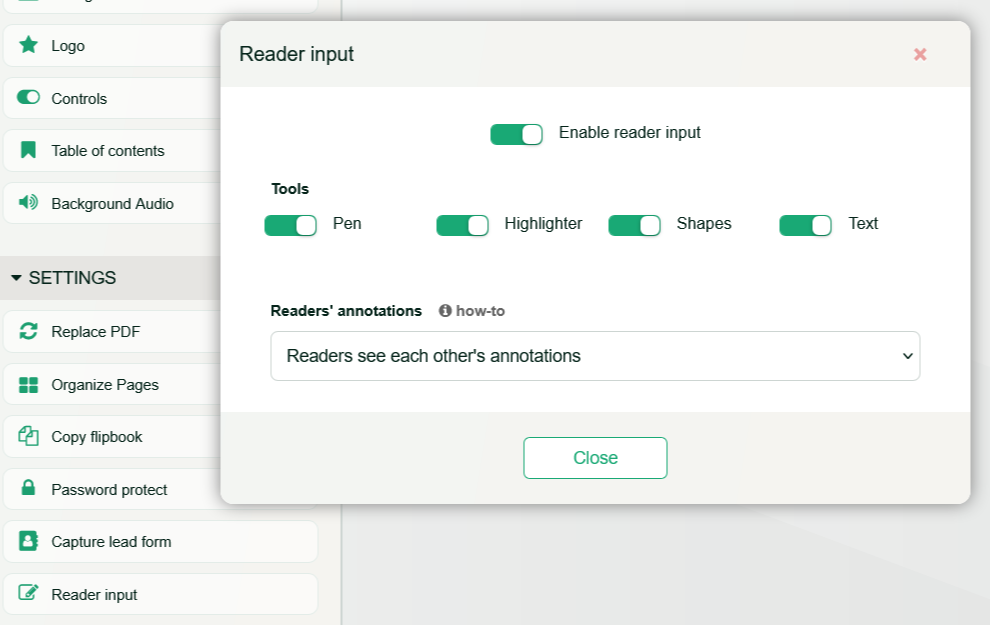
Reader annotations are off by default. Open your flipbook in the editor, go to Settings > Reader input and switch on Enable reader input. If you don't have a flipbook yet, start with Create and share your first PDF flipbook in 4 easy steps.
Once it's on, choose the tools your readers get: Pen, Highlighter, Shapes and Text. Only the tools you enable appear in the reader's toolbar. A product catalog may only need the highlighter, while a workbook or a course handout can offer all four.
In the same panel, you also decide who can see the annotations. We explain each option further down.
Which tools can readers use?
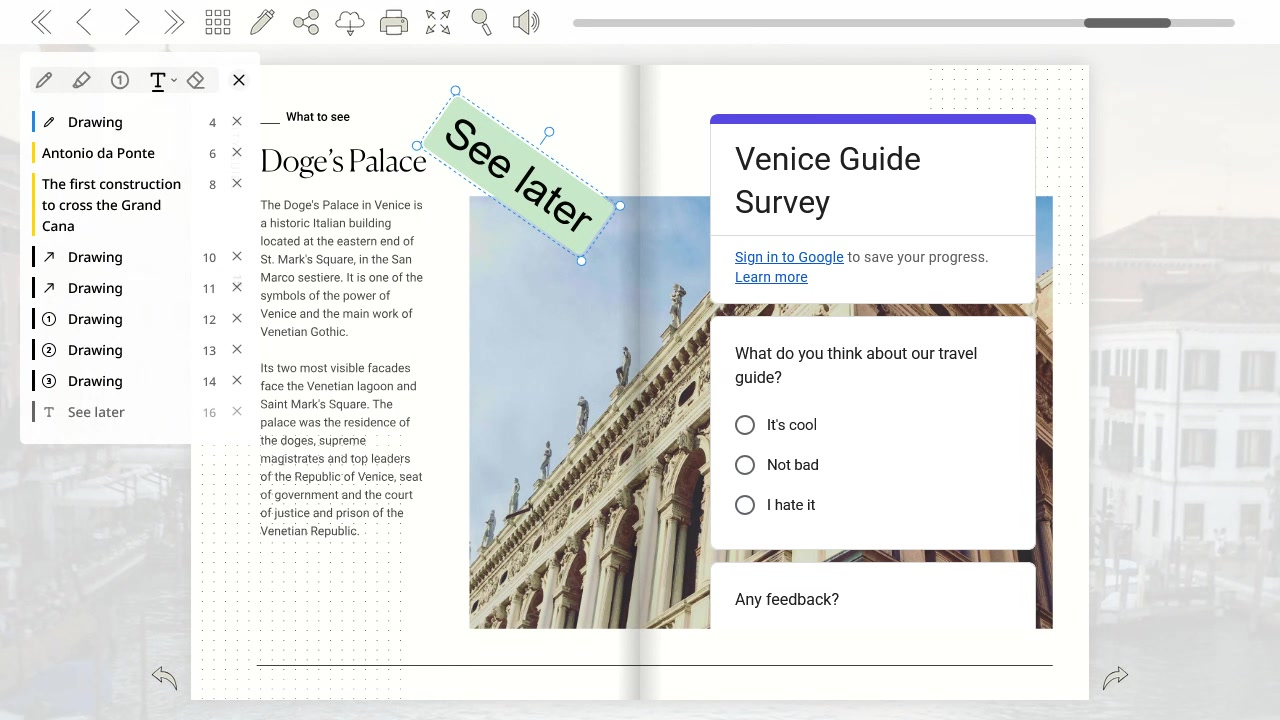
Readers open the annotation toolbar with the pencil icon in the flipbook's top menu. It appears in the top-left corner with the tools you enabled, an eraser, and a close button. The small arrow next to the active tool opens its options, such as colors and line thickness.
Pen
The pen draws freehand on the page. It's perfect for circling a name, underlining a sentence, or sketching a quick mark next to a picture.
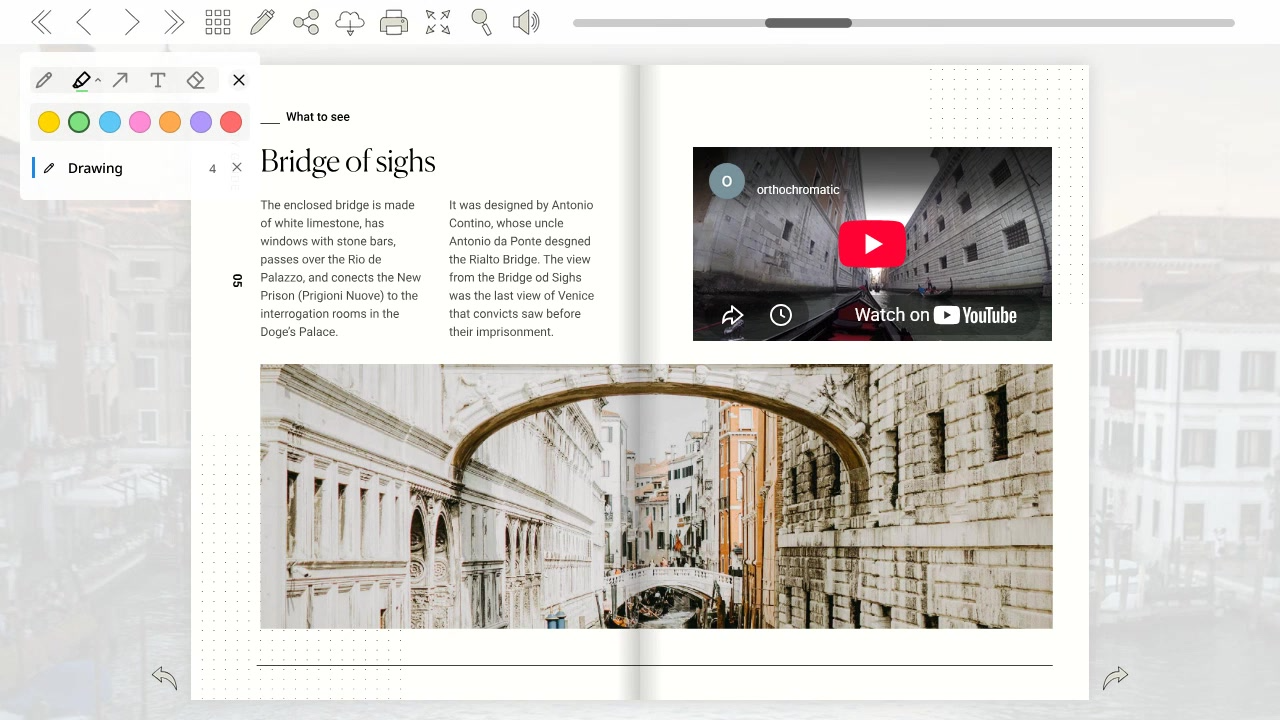
Highlighter
With the highlighter, readers select text on the page and it gets marked in the color they choose. The highlighted words also appear in the annotations list, so they're easy to find later, also by color.
Shapes
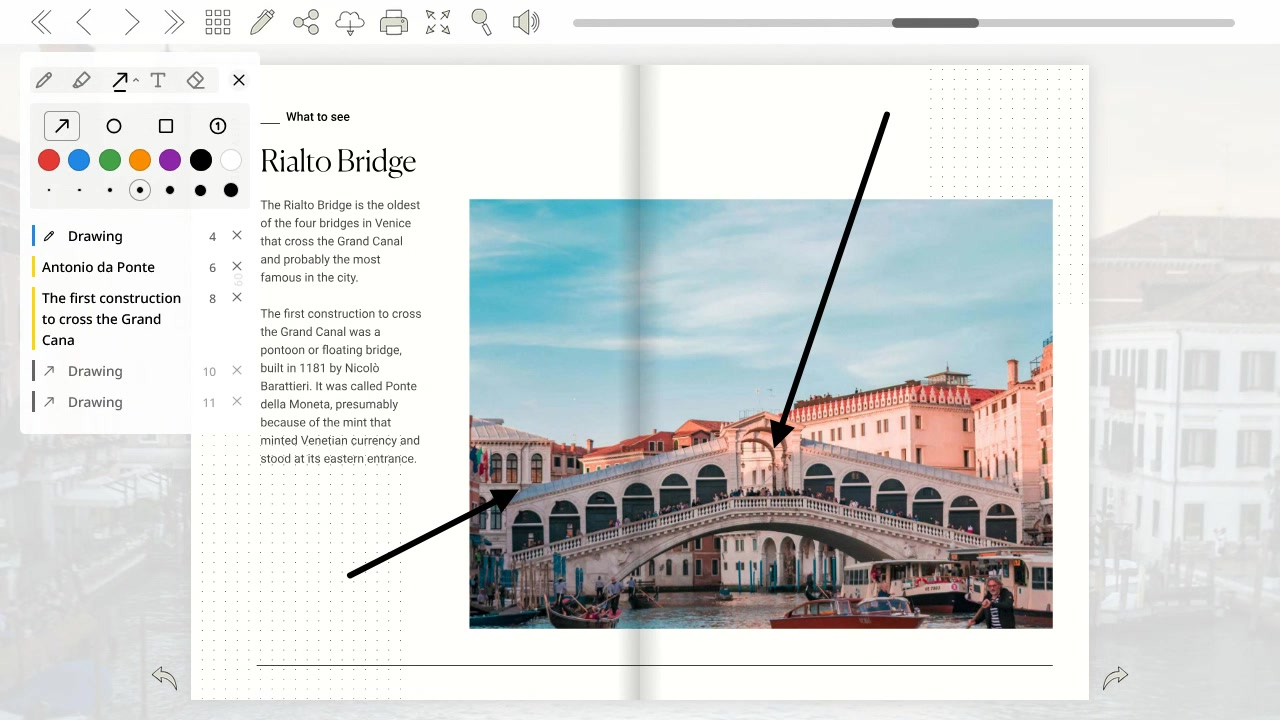
The shapes tool adds arrows, circles, rectangles and numbered markers. Numbered markers count up on their own (1, 2, 3...), which is handy to point out several details in order.
Text
The text tool places a short note anywhere on the page, like "See later". Readers can move, resize and rotate the note until it sits exactly where they want it.
Eraser
The eraser can remove specific annotations, a specific page or the whole flipbook. So a reader can fix a mistake or can start over.
The annotations list
Under the toolbar, a list shows every annotation in the flipbook with its type, the highlighted or typed text, and its page number. Clicking an item jumps to that page, and the × next to it deletes it.
Who can see the annotations?
In Settings > Reader input, you choose one of three options. It depends on whether annotations are just for the reader, something you want to review, or a space to work together.
Private to each reader
Annotations are kept in the reader's browser and are never sent to Heyzine. Only that reader can see them, not other readers and not you. When they come back with the same browser, their marks are still there. On another device, or after clearing the browser data, they start with a clean flipbook.
This option is available on all plans, and it's a good fit for catalogs, magazines and study material where notes are personal.
Saved to the dashboard
Each reader still sees only their own annotations, but they're also saved to Heyzine. You can then review everything your readers highlighted, drew or wrote from the Reader input page of your dashboard.
Use it to learn which parts of a document get the most attention, to collect feedback on a draft or a proposal, or to check the work of your students.
Readers see each other's annotations
Every change a reader makes is saved and shown to everyone who opens the flipbook, and it stays there for the next visitors. The flipbook becomes a shared board, great for a team reviewing a document together or a class working on the same handout.
You keep control: from the Reader input page, you can remove the annotations of any reader.
Both Saved to the dashboard and Readers see each other's annotations are part of the Professional Plan and above.
How can I see what my readers annotated?
When annotations are saved to the dashboard or shared between readers, they show up on the Reader input page. You'll find it in the top menu of your Heyzine dashboard.
At the top, pick a date range (from Today to Last 12 months, or All) and a flipbook. The arrows next to the date range move to the previous or next period. The chart shows how many readers added annotations during that time.
Below the chart, the Reader input table has a row for each reader and flipbook. Each row shows the last update, the flipbook and the username, plus:
- Username: When the flipbook is password-protected, you can find usernames here.
- Type: Personal when each reader only sees their own annotations, and Shared when readers see each other's.
- Highlights, Drawings and Texts: how many of each the reader added.
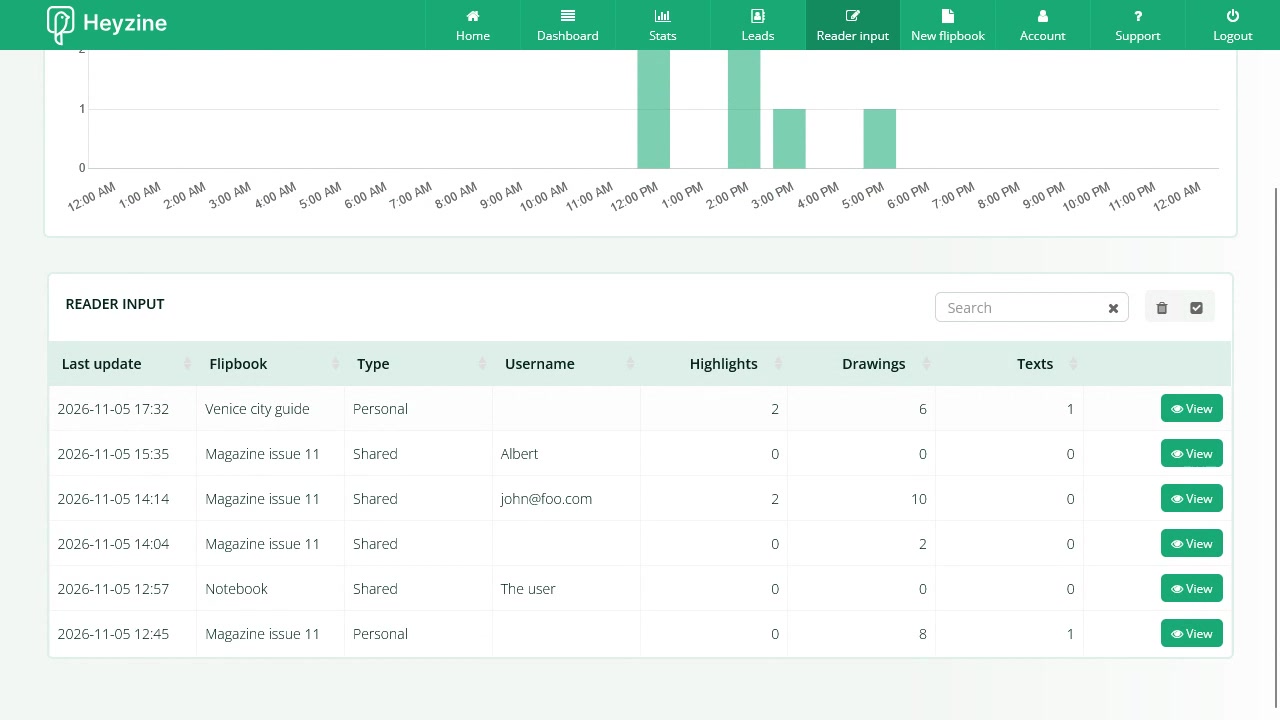
Use the search box to find a flipbook or a reader quickly. Click View to open the flipbook exactly as that reader marked it up, with the annotations list on the left to jump from page to page.
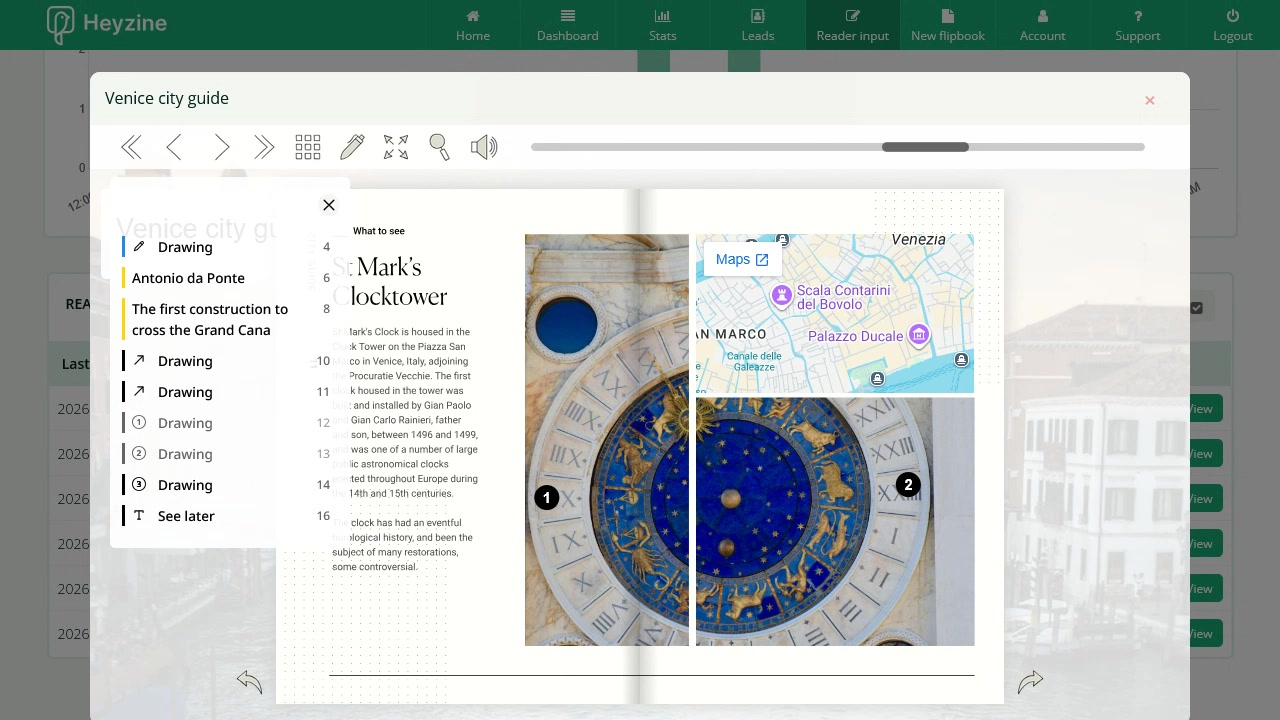
This page is also where you remove a reader's annotations, for example to tidy up a shared flipbook.
Start with private annotations to make your flipbooks more useful to each reader. When you want to learn from what they mark, or have them work together, switch to the dashboard or shared option in Settings > Reader input.