
Create beautiful digital invitations, greeting cards, wedding invitations, birthday invitations, and more with Heyzine. Start with a PDF design and turn it into an interactive invitation with music, videos, maps, forms, and more.
This way, instead of sending guests a static PDF, you can give them an interactive invitation they can explore and use directly from their phone.
Create your card
First, create your design using your preferred tool, such as Canva, InDesign, Photoshop, PowerPoint, or another design application. You can create:
- Birthday invitations
- Wedding invitations
- Greeting/Thank you cards
- Baby shower invitations
- Event invitations
- Valentine’s cards
When your design is ready, save or export it as a PDF.
Upload your PDF to Heyzine
Log in to Heyzine and upload your PDF. Heyzine will automatically convert it into an interactive card. Once the conversion is complete, open it in the editor to start adding interactive elements.
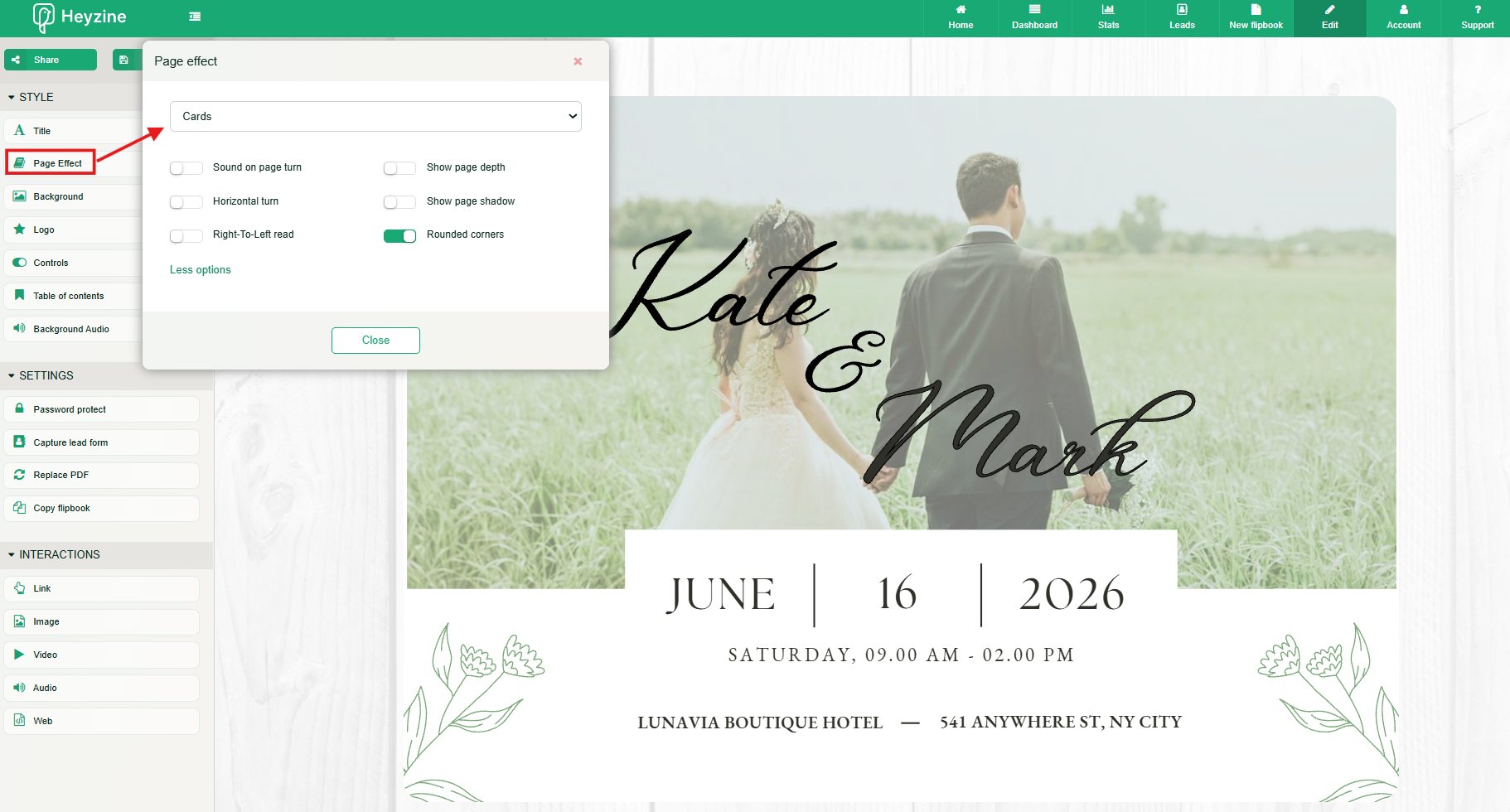
You can select the card option from the page effect option in the editor to make it look better:
How to Find the Perfect Invitation Background
Choose a background that matches your event's style. Directly in the heyzine background menu, search for terms like “wedding invitation background,” “floral wedding background,” or “rustic wedding invitation” to find suitable designs. Or look for a background in Canva and upload it in the heyzine background menu.
Try to balance the background of your invitation card with the flipbook background in Heyzine. If your card has a busy design with lots of patterns, choose a simpler background from Heyzine’s editor, such as a solid color, a blurred image, or a transparent effect, so it doesn't distract from the invitation.
If your card has a more minimalist design, try a bolder or more colorful flipbook background to create contrast and make it stand out.
Add interactions to your card
Making good use of interactive elements can help you create something useful and creative.
Add links and make buttons interactive
One of the easiest ways to make your invitation interactive is by adding links.
You can add links to:
- Google Maps or another map service
- A phone number
- An email address
- A wedding registry
- A gift cart for presents
Make buttons easy to recognize. Instead of displaying a long URL, create visual buttons in your original design, such as:
VIEW LOCATION
CONTACT US
WEDDING REGISTRY
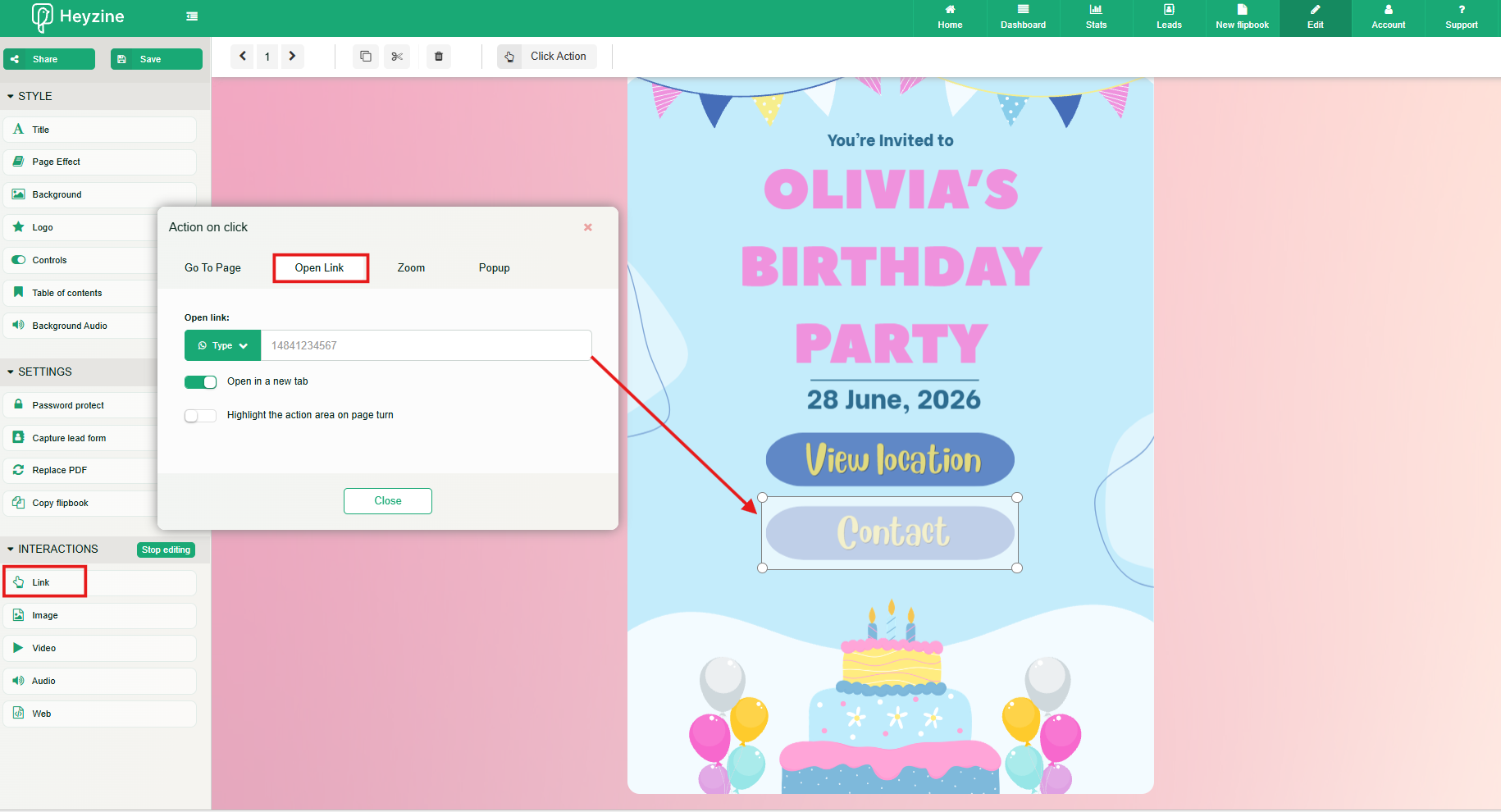
Then add the links to these areas from Heyzine’s editor. This creates a cleaner and more intuitive experience for guests.
For example, you could add a “Contact” button in your card that leads to a WhatsApp number to confirm or talk to the organizer.
What else is very important for an invitation? The date! To make it easy for guests to add the event to their calendar, the best option is to use an add to calendar link. This way, no matter the calendar app they use, it will be a one-click action.
How to add Google Maps to your invitation
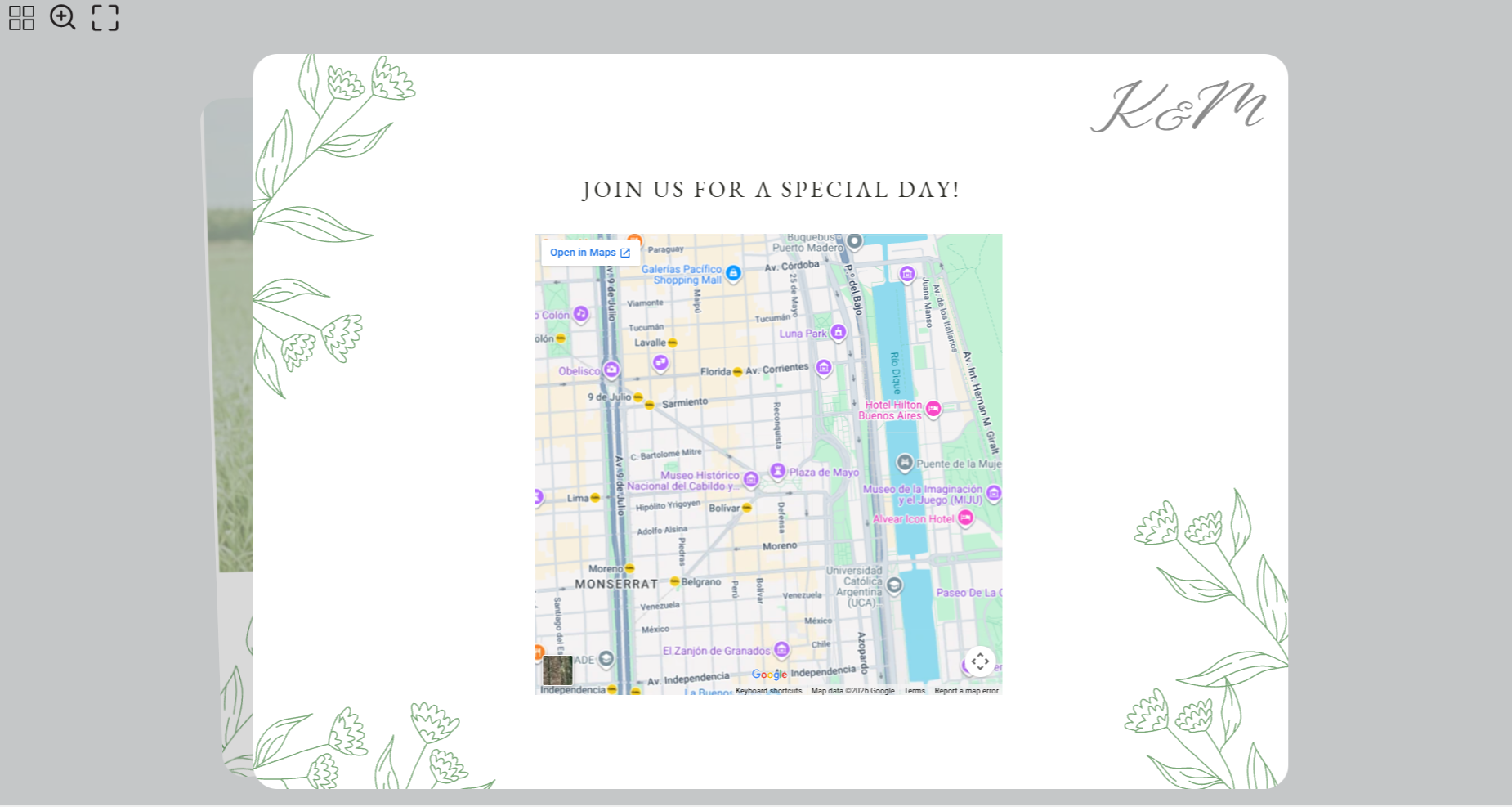
Make it easy for guests to find your event location by adding a Google Maps link to your invitation.
- Open Google Maps and search for your venue.
- Click Share - Embed a map - Copy HTML
- In Heyzine, go to Interactions - Web - paste the HTML code
Add videos and audio
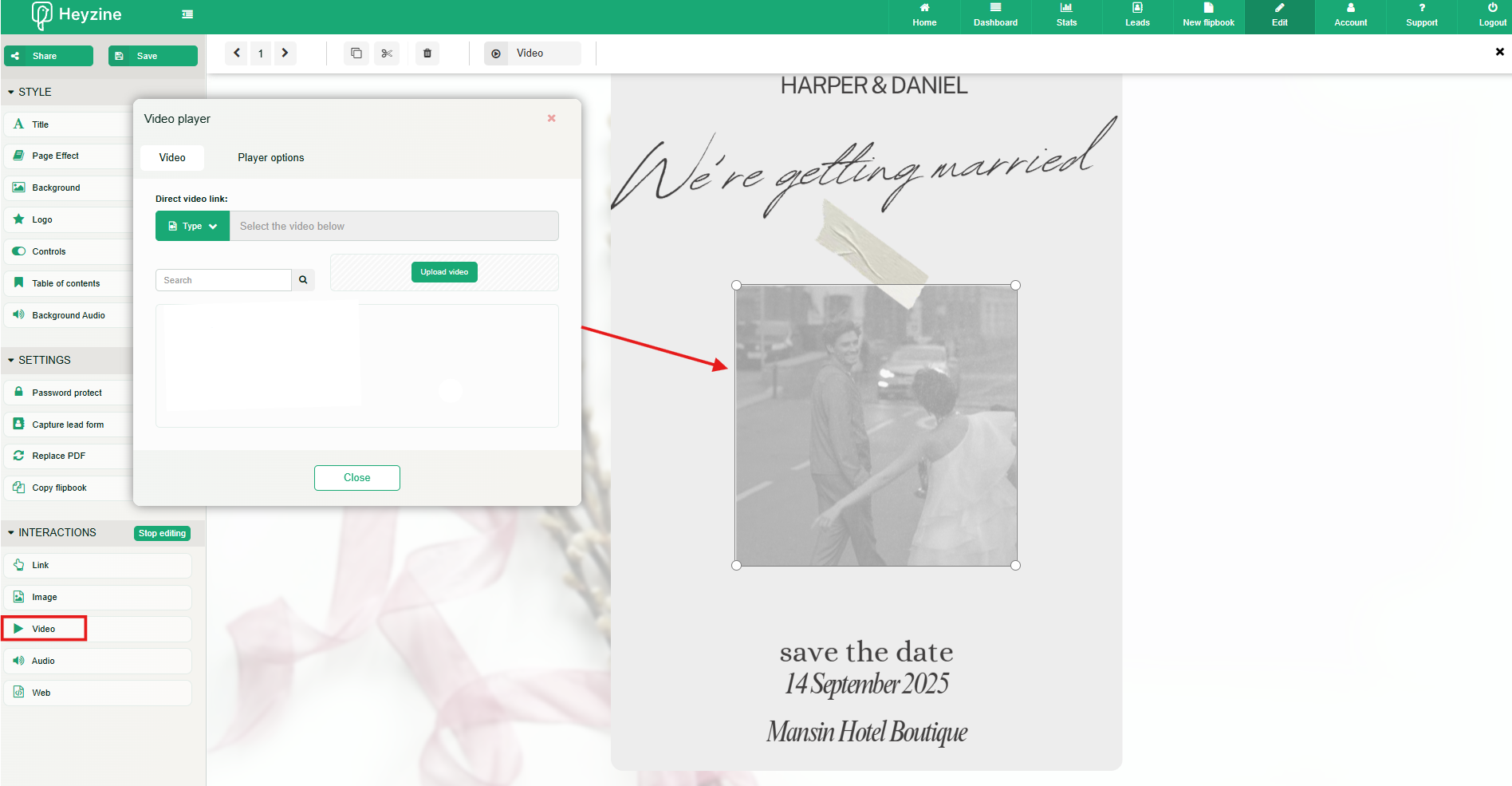
You can make your invitation more personal by adding a video. For a wedding invitation, for example, you could include a short video of the couple. For a birthday invitation, you could add a video message from the birthday person.
Add the video through the Heyzine editor - interactions - video, and select the position where you want it to appear on the page.
Adding thematic audio to the cards, like romantic music for a wedding invitation or lullaby melodies for a baby shower, can make a huge difference in the experience of your guests. A good option to find royalty-free music you can use freely is Pixabay.
Add images or GIFs
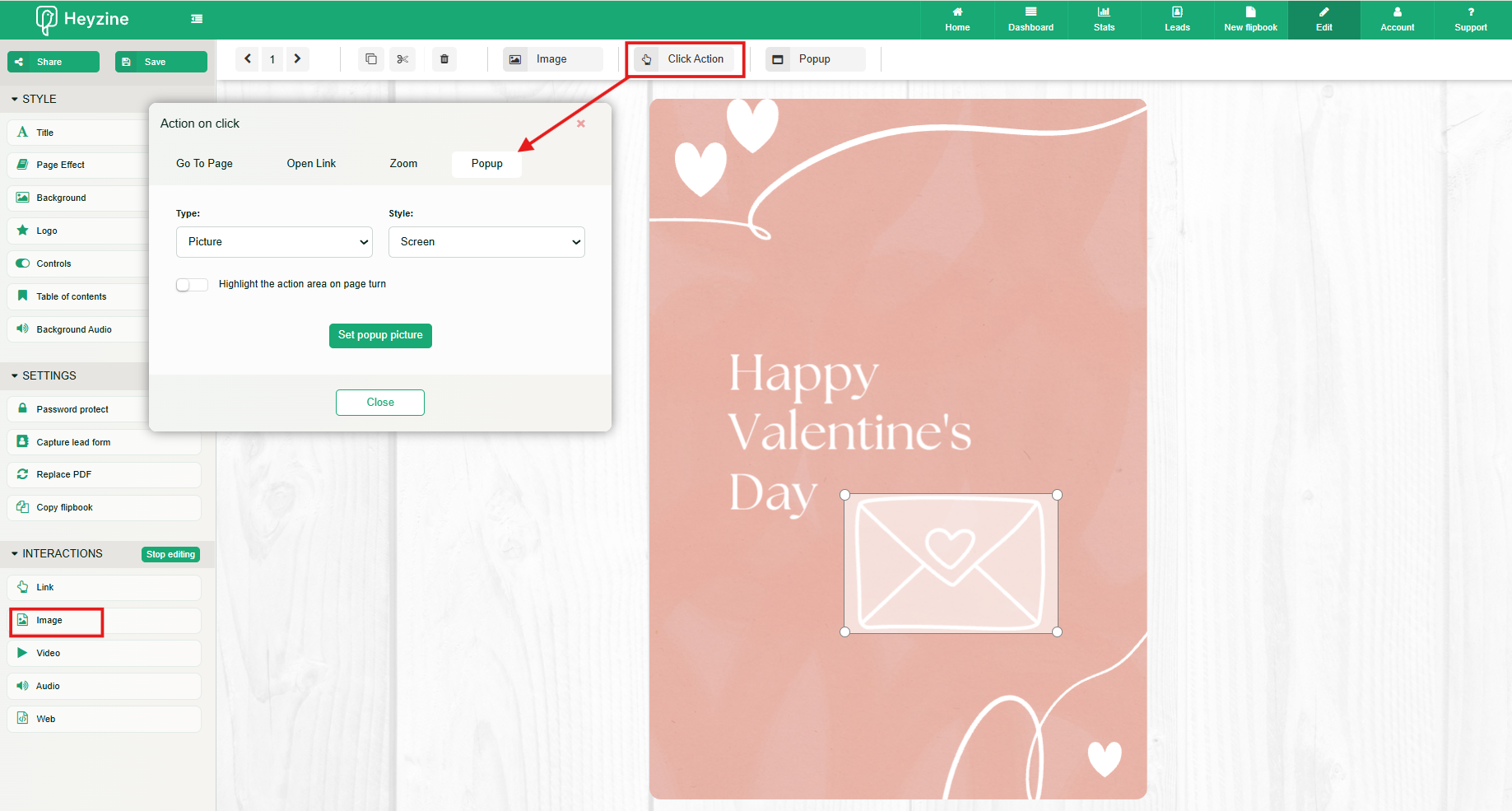
You can add pop-up images to your card to make it more fun and personalized.
Let’s say you’re creating a Valentine’s card; you can add a picture of you and your lover that pops up when clicking a button in the card.
Add an RSVP form
If you want guests to confirm their attendance, you can add a lead generation form to your flipbook. For example:
Will you be attending?
- Name
- Phone
- Number of guests
- Dietary requirements
- Message
This can be especially useful for weddings, birthdays, and other big events where you need to keep track of attendees.
Extra Details You Can Add to Your Invitation
Choose the extras that best suit your event and give your guests all the information they need for the special day.
Add a Dress Code
Let your guests know what to wear so everyone feels comfortable.
You can include:
- Dress code: Formal, elegant, casual, comfortable, or themed.
- Color palette: Suggest colors that match your event's style.
- Let guests know if they should wear comfortable clothes for games and activities, or dress up for an elegant evening celebration.
Example: “Come dressed in comfortable clothes and get ready for an afternoon full of fun and games!”
Give a Special Mention in your card
Make your invitation more meaningful by recognizing the people who play an important role in your celebration. You can add a dedicated page to introduce your wedding best man and maids, honor godparents, or thank your loved ones.
For example:
- Parents' names.
- Godparents' names for weddings, communions, or other religious celebrations.
- Bridesmaids' and groomsmen's names for weddings.
- A special dedication or thank-you message.
Add a Gift List or Gift Information
If you'd like to suggest gifts or make it easier for guests to contribute, you can include a gift section in your invitation.
- Add a gift list with your preferred items.
- Include a link to an online store or gift registry.
- Share a shopping link, such as an Amazon gift list or cart.
- Add bank account details or a transfer alias for monetary gifts.
Example: “Your presence is the greatest gift! If you'd like to give us something extra, you can contribute to our honeymoon using the details below.”
Make your invitation mobile-friendly
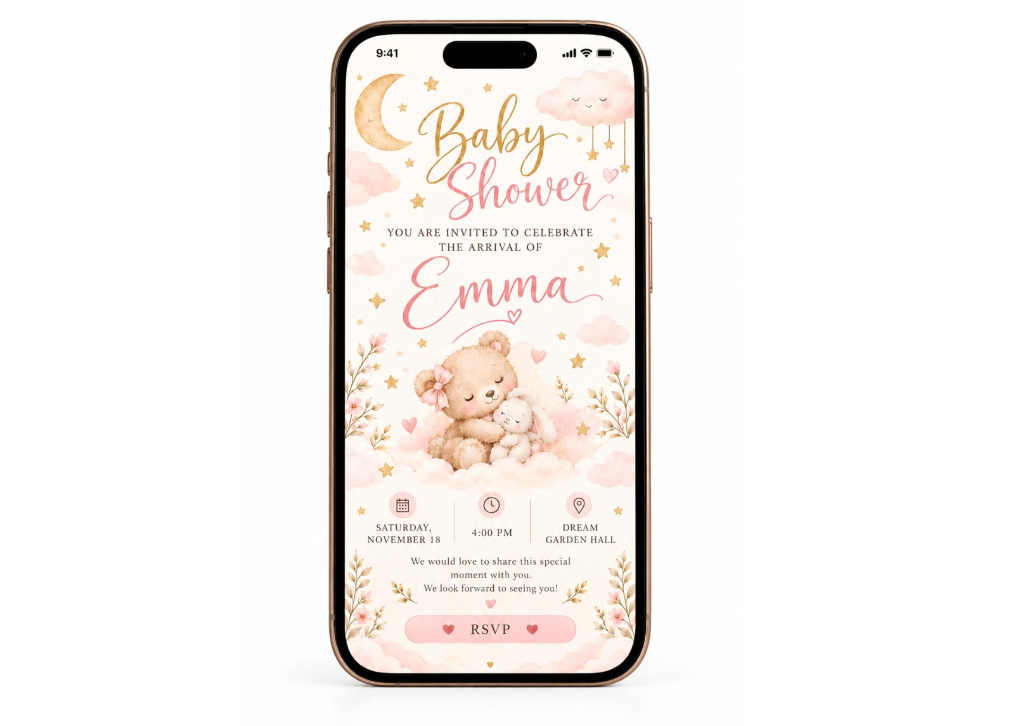
Many guests will open your invitation on their phones, so it's important to make sure the design is easy to read and interact with.
Here are a few tips:
Use readable fonts: Avoid very small text, especially for important details such as the date, time, and venue.
Keep important information visible: Make sure guests can easily find the event details without having to search through the invitation.
Make buttons easy to tap: Leave enough space around clickable areas and use clear labels such as “View Location” or “RSVP.”
Preview your invitation: Open the flipbook on a phone to check that the layout and interactions work as expected.
Test your invitation before sharing it
Before sending your invitation to guests, take a moment to check that everything works as expected.
You can use this checklist for reference:
- Check the event date, time, venue, and contact information.
- Test every link, including maps, email addresses, and WhatsApp buttons.
- Play any videos or audio you've added.
- Submit a test RSVP form, if applicable.
- Open the flipbook on both desktop and mobile devices.
Share your card
Once your invitation is ready, you can share it digitally using the flipbook's link, or send the thumbnail over email. Check this guide here to find all the sharing options.

